Interactive = the mind groups according to past interactions
Forms
Sliders (ignore)
Videos (consider whether to play)
Accordions, tabs, etc, sort of like headings
Native Screen Reader Surfers' Experience
Initial Arrival
Exploring Structure
Taking Stock
Moving Through and Interaction
Questions, Achievements, Themes
First Impressions – My Initial Arrival
Hearing the Title: The very first thing my screen reader tells me is the page title. This gives me my initial clue about what the page is about.
Dealing with Immediate Announcements: Sometimes, I immediately hear alerts like cookie notices or modal windows asking me to sign up for something. I have to address these first.
Confirmation of Loading: My screen reader then usually says "Document" or "Page loaded," letting me know the content is there.
Starting at the Top: My screen reader's focus is automatically at the very beginning of the page.
Getting My Bearings – Exploring Structure
Jumping Through Headings: I immediately start using my heading navigation commands (like pressing "H"). This gives me a quick outline of the page's main sections and how the information is organized.
Finding the Landmarks: I also navigate by landmarks (using "R" or my screen reader's landmark navigation). This helps me quickly locate the main navigation, the main content area, and the footer.
Taking Stock – What's on the Page?
Listing the Links: One of the first things I often do is bring up a list of all the links. This tells me where I can go on this page and what other sections exist. Clear link text is vital here.
Checking the Buttons: I also look at the list of buttons to see what actions I can perform. Well-labeled buttons are essential.
Identifying Form Fields: If I suspect there's a form, I'll check for a list of text fields, checkboxes, and dropdowns.
Exploring Lists: I'll see what lists are on the page and consider delving into them later.
Reviewing Headings Again: Sometimes, a list of headings provides a clearer overview than just jumping through them.
Moving Through the Content
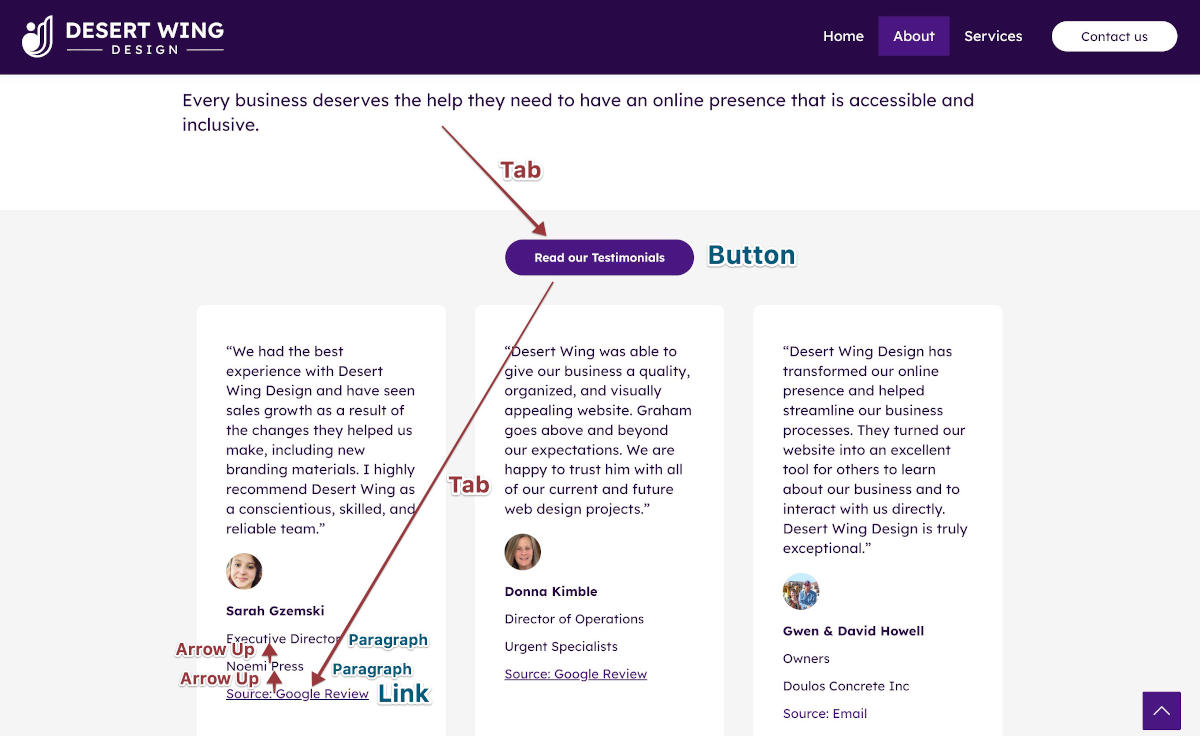
Tabbing Through: I use the Tab key to go through all the interactive elements in order. This helps me understand the flow and make sure everything is reachable with the keyboard.
Reading Line by Line: If the structure is confusing or I need to understand the details, I'll use the arrow keys to read the content word by word or line by line.
Listening to Element Types: My screen reader tells me what kind of element I'm on – a link, a button, an image, etc.
Paying Attention to Labels and Alt Text: I really rely on the labels for form fields and the alternative text for images to understand what they are.
Modes and Cursors in Screen Reader Testing
Why Modes Matter:
Screen readers switch between different ways of interacting with a webpage.
Users must understand when they are reading the page versus when they are interacting with elements.
This distinction affects how accurately you can test forms, buttons, inputs, menus, and interactive content.
What Users Must Understand for Learning & Testing - 1
Understanding Modes Is Critical Because:
You cannot test forms or interactive content unless you know which mode you are in.
Incorrect mode leads to incorrect test results, such as:
“The field won’t take text.”
“I can’t select a dropdown.”
What Users Must Understand for Learning & Testing - 2
To evaluate accessibility, testers must confirm:
Whether the screen reader announces entering forms/interact mode.
Whether it exits correctly.
Whether instructions or labels are available.
Whether keyboard navigation is predictable.
“Without an understanding of modes, learners assume the screen reader ‘isn’t working’ when it’s actually waiting for interaction.”
Getting Things Done – Interaction
Using the Keyboard: I use Enter to click links and buttons, Spacebar for checkboxes, and type into text fields.
Looking for Feedback: After I do something, I listen carefully for any messages that tell me if it worked, if there were errors, or if something changed on the page.
Navigating Complex Parts: For things like tabs or expanding sections, I try to figure out the keyboard commands, hoping the website uses accessibility standards.
Questions I'm Always Asking Myself
What's this page about?
What are the main parts of this page?
Where can I go from here?
What can I do on this page?
How is the information organized?
How do I move through the interactive parts?
What information do I need to put in this form?
What's this image showing me?
Did that button click work?
Is this website making sense to me?
What I'm Trying to Achieve
To understand the purpose and content.
To find my way around and know what I can do.
To get a mental picture of how things are laid out.
To be able to interact with elements and complete tasks.
Ultimately, to have a usable and efficient experience.
Common Themes in My Web Surfing
Structure is Key: If a website is well-structured with headings and landmarks, it's much easier for me.
Words Matter: Clear labels and good alt text make a huge difference.
Keyboard is Everything: I can't see the mouse, so keyboard navigation has to work.
I Need to Know What Happened: Feedback after I interact with something is vital.
Accessibility Makes or Breaks It: How easy a website is for me depends directly on how accessible it's been designed.
I'm Always Problem-Solving: I often have to figure out unconventional layouts or poorly implemented features.
Before We Ascend: Get a handle on screen reader basics for NVDA and VO
History
Context
Keystrokes
Ropes Course
Screen Reader Basics: NVDA, VoiceOver, Mobile
Please install NVDA if you have a Windows machine (VoiceOver is preinstalled on Macs)
We'll go over some history while you're doing that
Screen Reader History - 1
1984 - Personal Computer Synthetic Audio Interface Driver (PC-SAID) was renamed IBM Screen Reader and was the first PC screen reader, from which the term "screen reader" is derived
1989 - Job Access With Speech (JAWS) was developed for Windows
2000 - Narrator for Windows 2000+
2005 - VoiceOver for MacOS (since 2009)
2006 - Nonvisual Desktop Access (NVDA) open-source for Windows
Screen Reader History - 2
Present - Narrator keeps getting better, but JAWS is still the most popular ($$$*) with NVDA a runner up; VoiceOver is still Mac's only option.
Mobile devices since 2009 have VoiceOver (iOS), and Talkback (Android)
*Personal license = $104.50/year, Professional license = $2267.50 one-time
Screen Reader Setup For Success
Default setup may derail you
May be overly verbose
May not let you use the keystrokes as recommended
Setting up can be complicated
You don’t yet know what everything is or is called
Kosi knows everything and has a few slides for you in the Appendix - use them!
Try each keystroke on your cheat sheet a couple times
Activate the screen curtain and try each again
VO: three-finger triple-tap, NVDA: through settings
Screen curtain for VO: enable trackpad commander by VO + rotate two fingers clockwise on trackpad, then three-finger triple tap
Plan a time when you'll come back and go through the entire Ropes Course with all the tasks
The Visual/Screen-reader Disconnect
The experiences are different
Embrace the disconnect
You won't ever be native
It's still worth it to test on screen readers
The Visual/Screen-reader Disconnect - 1
Goals are the same
Informative - get the info
Interactive - perform the interactions
The experience is on a different plane
varied fluency = vastly different experience
Paired testing is essential
Variety of pairings is optimal
Every user is different
Embracing the Disconnect
Embrace the disconnect
Chance to tease out the differences
Chance to see the site experience as a whole (different perspective)
Chance to hammer out what would be the optimal experience for both
But what if you don't have a native screen reader user to test the site?
That's why you're here!
On the path to fluency
Nonnative screen reader development
Getting Started - 2-5 hours
Functional Beginner (know the strokes) - 10-20 hour*
Intermediate (more comfortable) - 40-60 hours*
Proficient (strokes are second-nature) - 100-250 hours*
Native fluency (Lived expertise through full-time use)- 2000+ hours*
* practice hours should all be spent with screen curtain on, eyes closed, or not looking at the screen. Kosi insists!
Native screen reader development:
3ish hours a day for a couple years
Comes naturally on computer daily
Screen Reader Tips
Kosi's Contextualizing Tips
Turn Off the Screen & Rely on Audio
Embrace Keyboard-Only Navigation
Build a Mental Map Using Headings and Landmarks
Browse Mode vs Forms Mode
Develop Patience and Practice Mental Rehearsal
Pay Attention to Dynamic Content and Focus Management
Pay Attention (generally)
Without a native tester
In the absence of a native screen reader paired tester
Realize you're not getting the full picture
Put yourself in the place of a native screen reader user as best you can
It's better than not trying
Every site you test for accessibility you should test with at least one screen reader
Preferably test it with two or more
Know that it's still not the full picture
Screen Reader Testing Tips
Know What "Correct" Should Sound Like
Audio Checklist
Warning Signs That Something Is Wrong
Quick Reference
Know What "Correct" Should Sound Like
When navigating with a screen reader, you should hear:
Role — What is the element? (e.g., button, heading, link)
Name/Label — What is its purpose? (e.g., "Search", "Continue")
State — What condition is it in? (e.g., "selected", "disabled", "checked")
If you're hearing all three (when appropriate), the element is likely coded accessibly.
What Appropriate Screen Reader Output Sounds Like (By Element)
Screen Reader Announcements
Element Type
Expected Announcement
Heading
"Heading level 1, Welcome"
Link
"Link, Contact Us"
Button
"Button, Add to Cart"
Image (with alt text)
"Graphic, Woman walking with cane"
Checkbox
"Checkbox, Subscribe to newsletter, not checked"
Tab
"Tab, Details, selected"
Dropdown
"Combo box, Choose a country, United States"
Dialog
"Dialog, Are you sure you want to delete this item?"
Table cell
"Row 2, Column 1, Monday"
Warning Signs That Something Is Wrong
If you hear the following, the element may be inaccessible:
Problems indicated by screen reader announcements
What you hear
What's Likely Wrong
"Link" (with no label)
Empty or missing link text
Heading level 2, blank
No heading content or improperly styled heading
"Graphic" with no alt text
Image missing alt attribute
Button with no name
Missing label or aria-label
Form field with no context
No label element or aria-labelledby used
No feedback on toggle state
Missing aria-pressed, aria-expanded, etc.
Silent interactions
No screen reader feedback means missing roles/states
Remember: Wording May Vary Slightly
Screen readers may phrase things differently, but as long as the essential information is there (role, name, state), you're likely hearing it correctly.
When in Doubt: Ask These Questions
Did the screen reader announce what the item is? (e.g., link, heading, button)
Did it tell you what the item is called?
Did it describe what state the item is in (e.g., selected, required, expanded)?
Did anything feel confusing, repetitive, or silent when it shouldn't have?
If you answer "no" to any of those, the page likely has accessibility issues.
Documentation and Remediation Strategies
How to document
Where to document
Experiential plain language
Documentation Basics
Spreadsheet (easiest for you)
Word doc (easiest for remediation devs)
What to include about the problem:
Name of problem
Contextualize in user experience
Screenshot
Code snippets
Current/problematic
Ideal
Documentation Basics - 2
What to include about the suggestion:
Potential fix or what the new code should look like
Explanation of the better experience the fix will provide to screen reader users
Some features in NVDA will need to be set up to provide the most robust functionality
Select the Desktop keyboard layout (uses the Insert key as the NVDA key)
Recommended NVDA Settings for Accessibility Testing
Speech rate: slightly faster but still comfortable
Punctuation level: set to “Some”
Setting Up NVDA for Testing (Windows) - 2
Optional but helpful settings:
Beep for progress bar updates
Play sound cues for focus changes
Essential NVDA Commands
Ctrl + Alt + N: Launch NVDA (if enabled during setup)
NVDA + N: Open NVDA menu
NVDA + Q: Quit NVDA
Setting Up VoiceOver for testing (Mac) - 1
Some features (settings) in the VoiceOver Utility will need to be set up to provide the most robust functionality - open VoiceOver Utility
General
VO Modifier key (control-option or caps lock)
Verbosity
Speech (Medium is best for most)
Text (Punctuation: Some)
Hints (probably useful while learning, but can be disabled later if desired)
Setting Up VoiceOver for testing (Mac) - 2
Speech
Choose a voice that’s easy to understand
Set rate to a little faster, but understandable
Commanders
Trackpad, enable for easy screen curtain
Kosi - “If you’re not practicing with your screen off, you’re not really practicing”
Quick Nav, enable all
Especially single-key navigation
Voiceover Recognition
Disabled (probably already is)
Modes: Browse Mode vs Forms Mode
NVDA: Browse Mode vs Forms Mode - 1
Used for navigating a webpage.
Allows jumping by headings, links, lists, landmarks, tables, and other elements.
Single-key navigation works (H, D, L, F, T, K, etc.).
You can explore the structure of the page without activating anything.
Ideal for understanding layout, content order, and structure.
NVDA: Browse Mode vs Forms Mode - 2
Automatically activated when entering an interactive element:
Edit fields, Combo boxes, List boxes, Search fields, Text areas
In this mode:
Single-key navigation does NOT work.
NVDA expects you to type, select, or interact.
NVDA: Browse Mode vs Forms Mode - 3
Exit Forms Mode (NVDA)
switch back to Browse Mode by:
Pressing Escape
Pressing NVDA+Space (toggle)
VoiceOver (Mac): Interact vs QuickNav - 1
Used for navigating the page structure.
Turn on/off with Left Arrow + Right Arrow.
Single-key mode needs to be enabled.
Use single letters (H, L, B) to jump by element types.
Similar to NVDA’s “Browse Mode”.
VoiceOver (Mac): Interact vs QuickNav - 2
Enter an element (drill down) with simultaneous right-down arrows, leave with left-down
Activate a button or link with up simultaneous up-down arrows
To fill form field, activate with up-down, then disable quicknav with right-left, type, tab to the next, reenable quicknav after leaving the field.
To check radio button states, tab to them to most reliably hear their state
VoiceOver (Mac): Interact vs QuickNav - 3
To check radio button states, tab to them to most reliably hear their state (selected)
Sometimes VoiceOver won’t announce a radio button’s state, so you should plan on checking these by tabbing to them. Doing this results in VoiceOver performing more reliably.
Screen Reader Expected Announcements and Behavior
This section outlines what a screen reader typically announces during navigation and interaction. Use it as a mental checklist to confirm that you're hearing the right information, and to spot potential accessibility issues when elements are incorrectly coded.
1. Basic Page Navigation Elements
Page Loading
Expected Announcements:
"Page title: [title text]" (first thing when page loads)
"Document loaded" or "Ready" (when page finishes loading)
How to Tell Something is Wrong:
No page title announced — you won't know what page you're on.
No confirmation when loading finishes — you may be unsure if the page is ready.